In this guide, we’ll walk you through the steps to configure SX.ORG proxies within the Paraturbo browser. Follow the instructions below to ensure a smooth and secure integration.
Introduction of SX.ORG Proxy
SX.ORG is a fresh proxy market with 12M+ clean IP addresses of all types with 235 GEOs. Each proxy is measured and has its own highest rating. All types of proxies: Mobile, Residential, Corporate. Users pay only for the traffic they use – pay as you go or buy an unlimited proxy for a fixed price per month.
Support for HTTP and SOCKS5 protocols. Open API for developers. 24/7 customer support in WeChat, Telegram, WhatsApp or in your personal SX.ORG account.
SX.ORG Proxy Configuration
Use promo code Paraturbo25 to receive 3GB of proxy traffic for FREE, valid for 7 days.
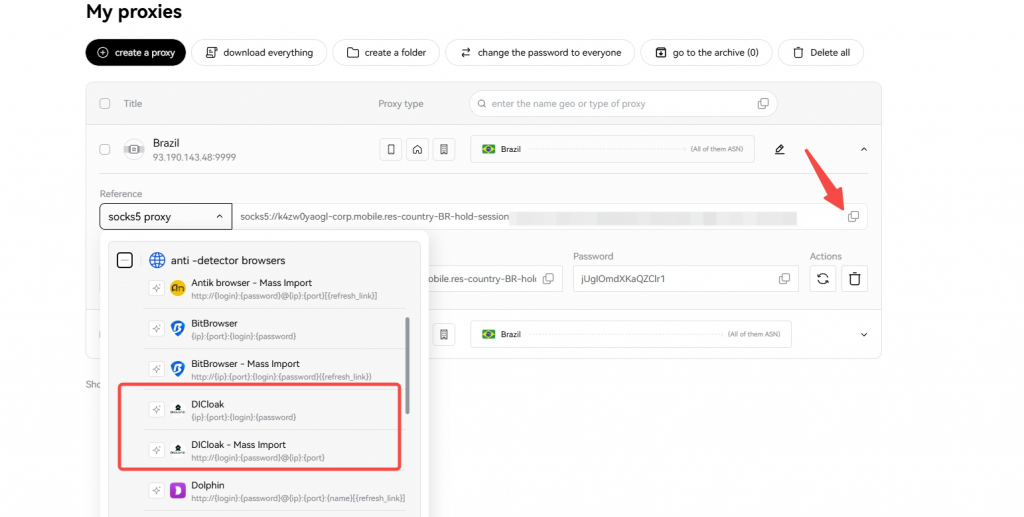
- First, log in to your SX.ORG dashboard, select your desired region, and create a new proxy.

- In the My Proxies section, choose the Paraturbo template for a quick setup in the Paraturbo app, then click.
Configuring SX.ORG Proxy in Paraturbo
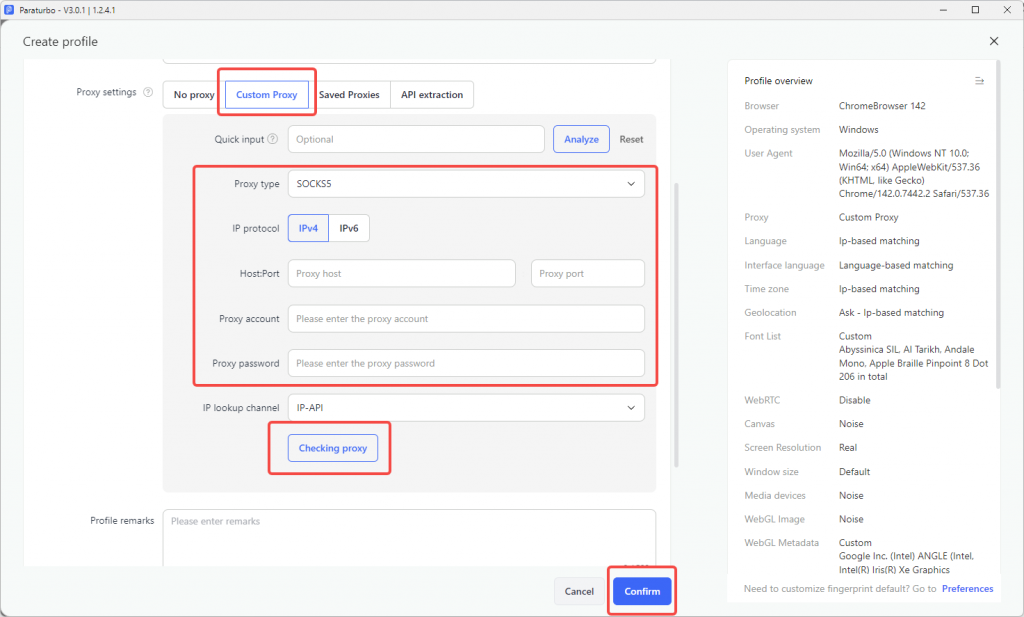
1.Open the Paraturbo anti-fingerprint browser and click the “Create Profile” button on the “Profiles” page

2.Then enter the profile name and other information, scroll down to the proxy setting module, select the proxy type: HTTP, and paste the proxy info you just copied into “Proxy host”. The proxy port, account and password will be automatically filled in. Click ” Check Proxy” and click “Confirm” when finished
3.Click the “Open” button to start using it.
